
In RCS most of your time you'll spend in front of your cockpit, so it is very important to know which button does what. Here's a screenshot from the game, and below is a complete explanation of each interactive element in the Real Combat Simulator cockpit view:
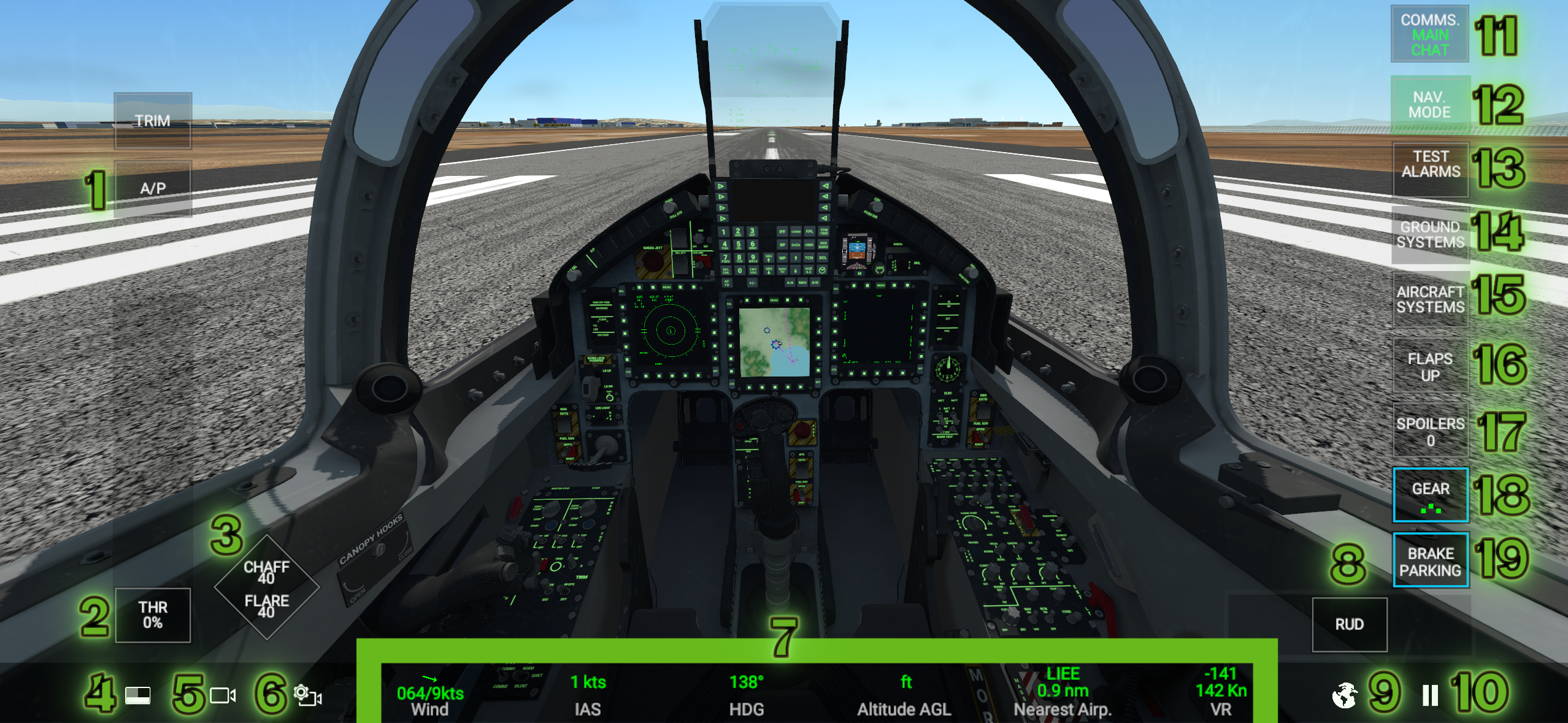
🟩 Left Side Controls
1. Autopilot (A/P)
Enables the autopilot and available flight-assist modes.
2. Throttle (THR %)
Controls the engine power level.
3. Countermeasures (CHAFF 40 | FLARE 40)
Deploys flares and chaff to defend against incoming missiles.
4. On-Screen MFDs
Toggles additional MFD overlays on the HUD.
5. Cameras
Changes external and internal camera views.
6. Camera & Cockpit Settings
Adjusts camera behavior, HUD layout, and cockpit view settings.
🟩 Bottom Information Bar
7. Info Slots (customizable)
Displays flight information such as IAS, altitude (MSL/AGL), wind, fuel load, aircraft load, and more.
These slots can be customized.
8. Rudder [RUD]
Yaw control (left/right).
9. Map
Opens the tactical map with navigation points and radar contacts.
10. Pause & Menu
Pauses the game and opens the in-game menu.
🟩Right Side Controls
11. Communication panel (COMMS.)
Opens communication tools (radio messages, chat).
12. Mode Switch (NAV / AA / AG)
Switches between:
NAV – Navigation mode
AA – Air-to-Air combat
AG – Air-to-Ground attack
This selection changes the available weapon/radar controls (see item 18).
13. Test Alarms
Runs diagnostics of aircraft warning and alert systems.
15. Ground Systems
Provides access to advanced onboard systems (fuel etc.)
15. Aircraft Systems
Provides access to advanced onboard systems (power, electronics, FCS, etc.).
16. Flaps
Controls aerodynamic flaps.
17. Spoilers (airbrakers)
Extends or retracts airbrakes for additional drag.
18. Gear
This panel changes depending on the selected mode (NAV/AA/AG):
• Radar modes (RWS / TWS / SIT)
• Weapon selection
• Target cycling
• Weapon delivery settings
19. Brake parking